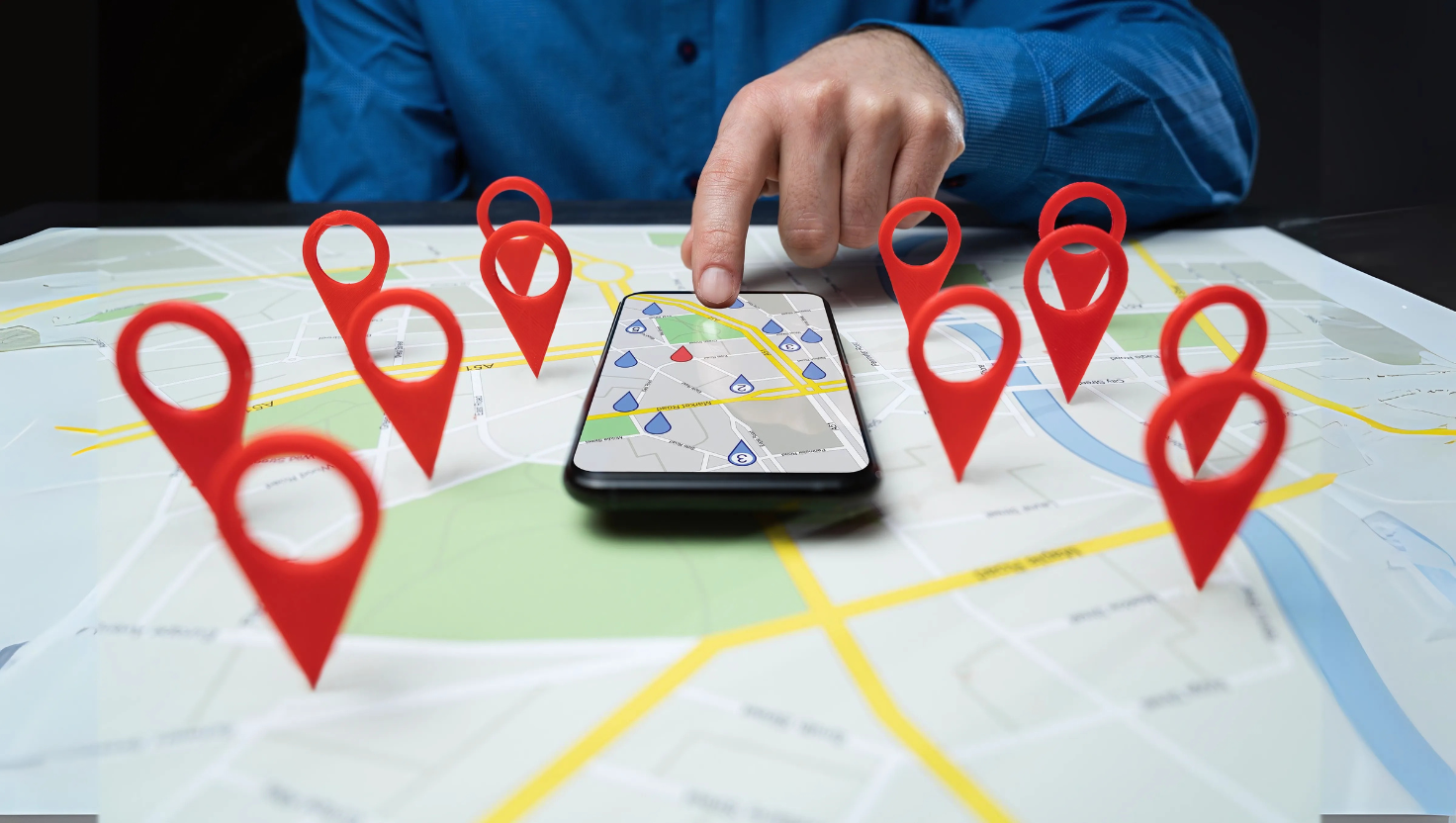
How to Make Your Business Appear on Google Maps
If your business isn’t on Google Maps, you’re missing out on local customers who search for products and services near them every day. Getting listed on Google Maps helps people find your location, contact you, and even read reviews before visiting.
The good news? Adding your business is free and only takes a few minutes. In this guide, you’ll learn exactly how to make your business appear on Google Maps and attract more local customers.
1. Sign in to Google Business Profile
Google Maps listings are managed through Google Business Profile (GBP). If you don’t have one, you’ll need to create it.
Go to Google Business Profile
Sign in with your Google account
Click “Manage Now”
Pro Tip: Use your official business email for credibility.
2. Add Your Business Information
When prompted, enter your business name, address, and category.
Business Name: Must match your real-world name
Address: Be accurate – this is how customers will find you on the map
Category: Helps Google understand what you do (e.g., “Restaurant,” “Salon,” “Digital Marketing Agency”)
You can also choose whether to display your address publicly or serve customers at their location (important for service-based businesses).
3. Pin Your Location on Google Maps
Google will ask you to place a marker on the map for accuracy.
Zoom in and drag the pin to your exact location
Double-check surrounding streets and landmarks
This ensures customers don’t get lost when visiting.
4. Add Contact Details and Website
Make it easy for customers to connect with you:
Phone number
Website URL (if you don’t have one, you can create a free site using Google Sites)
Business hours
The more complete your profile, the better it ranks in local search.
5. Verify Your Business
Google needs to confirm you’re the rightful owner before displaying your business on Maps. Common verification methods include:
Postcard Verification: Google sends a code to your business address (takes 5–14 days)
Phone Verification: Available for some businesses
Email Verification: If Google allows it
Without verification, your business won’t appear publicly.
6. Optimize Your Google Maps Listing
After verification, enhance your profile to attract more customers:
Add high-quality photos of your business and products
Write a keyword-rich business description
Collect and respond to reviews
Post regular updates and offers via your GBP dashboard
You can also explore Google’s optimization tips to improve visibility.
7. Keep Your Information Updated
If you change your hours, phone number, or location, update your profile immediately. Consistency is crucial for local SEO.
Benefits of Being on Google Maps
Increased Visibility: Appear in local searches like “best coffee near me”
Customer Trust: Reviews and ratings build credibility
Free Marketing: No cost to list or manage your profile
According to a Think with Google study, 76% of people who search for something nearby visit a business within a day.
Final Thoughts
Adding your business to Google Maps is one of the easiest and most effective ways to grow your local presence. By creating and optimizing your Google Business Profile, you make it easier for customers to find, trust, and choose your business.
With our expert web design and SEO services, Tryangle Tech ensures your business not only appears on Google Maps but also stands out in local search results.